
Tables, KOTs and the live order board
Set up dining areas and kitchens, route KOTs to the right station, and run service from the live order board.
Dining areas and tables
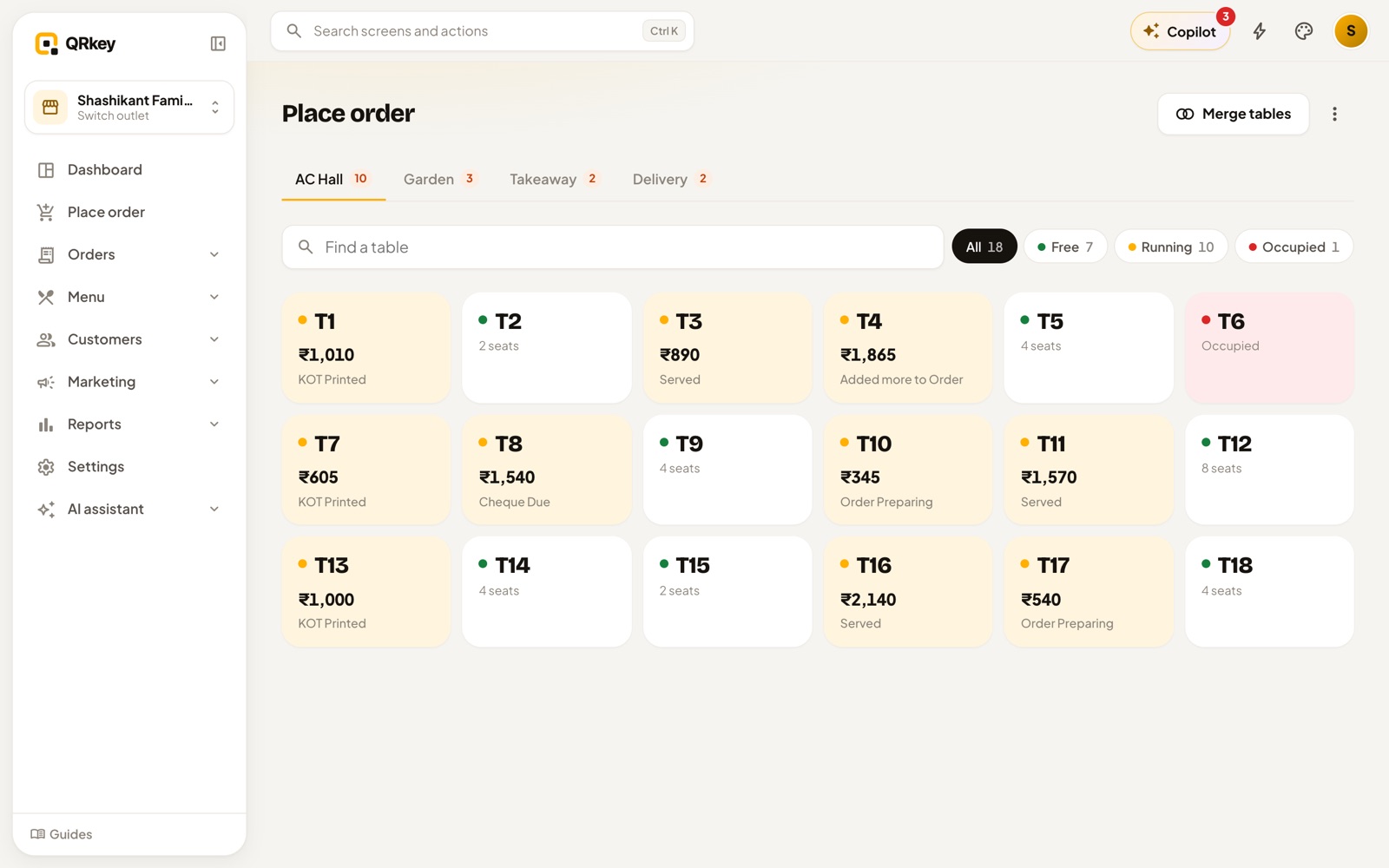
In Settings → Tables and kitchen, add your dining sections (AC, garden, rooftop, takeaway, delivery) and the tables in each. Each section can have its own prices, taxes and availability, so a dish can cost more on the rooftop or be switched off for delivery.
Kitchens, bars and KOT routing
Add each kitchen or bar station in the same settings area and choose the printer for each. Each item belongs to a station, so one order can print a KOT in the tandoor, another at the bar and a third on the main line. A KOT shows the table, the items, quantities and any notes typed against an item.
If a printer is busy or offline, QRkey's desktop and Android apps retry the print and tell you if it failed, with a button to print it again. See Printers.
The live order board
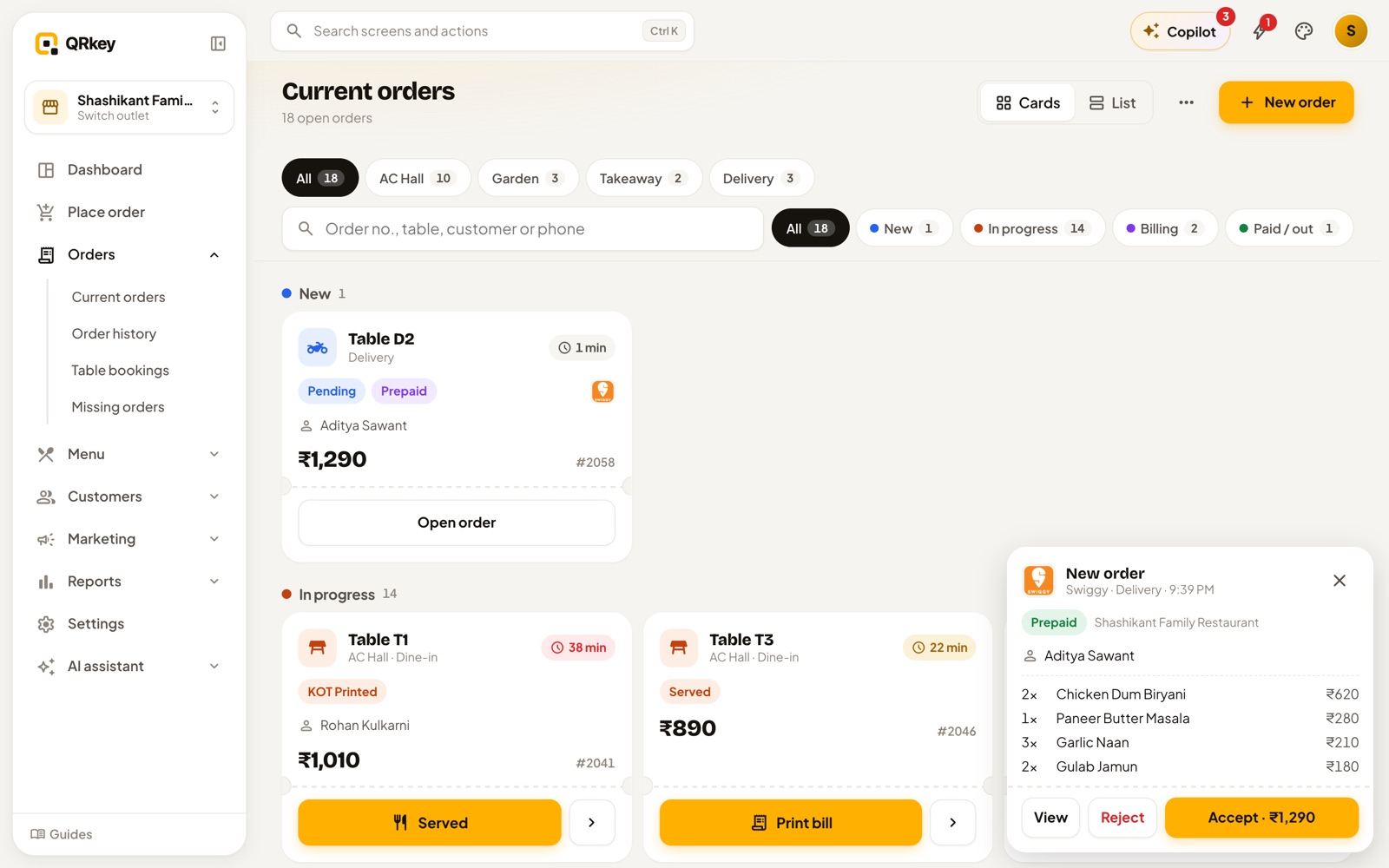
Current orders shows every open order as a card, grouped by stage: New, In progress, Billing and Paid / out. It updates by itself when orders arrive or change.
- Tap a stage to see only those orders, or search by order number, table, customer name or phone.
- The big button on each card is always the next step: Food ready, Served, Print bill, Pay bill, Out for delivery or Complete.
- The timer changes colour when an order has waited over 20 minutes.
- Switch to List for a compact view on busy days. Each device remembers its choice.
Track each dish
Inside an order, every item shows where it is. Tap Preparing, Ready or Served on an item to move it along, so captains know what's still to come from the kitchen.
Calls from the table
If you use QR ordering, guests can call a waiter or ask for the bill from their phone. A Table requests strip appears at the top of Current orders. Tap Ack so the guest knows someone is coming, then Done.
Prefer a walkthrough? In QRkey, open your account menu → Guides and start “Current orders and online orders”. It points at each button on the real screen.