
Getting started with QRkey
Create your account, set up the outlet, and find your way around the POS in your first hour.
1. Create your account
- Open console.qrkey.in/signup and enter your name, email, mobile number and a password.
- Verify your email from the link we send, then your mobile with the 6-digit code we send on WhatsApp.
- Describe the outlet: its name and type, how many dine-in tables you have, contact details and address. GST, FSSAI, manager and owner details are optional at this stage.
- Review and submit. Our team checks each new outlet before it goes live, and the same page shows when it's approved. Then tap Open POS.
Would you rather we did this with you? Book a free demo and we'll set up your outlet, menu and printers on a call.
2. Your first hour
Do these in order and you can take your first order the same day:
- Outlet details and taxes. In Settings → Outlet and billing, check your name and address as they should print on bills, then set up GST under Tax and any service, packing or delivery charges under Other charges. See Settings, staff and outlets.
- Menu. Add your categories and items, or import them from Excel. See Menu, prices and taxes.
- Sections and tables. Add your dining areas (AC, garden, rooftop) and the tables in each, plus Takeaway and Delivery.
- Printers. Connect your bill and KOT printers. See Printers.
- Staff. Give each person their own login with only the screens they need.
3. Find your way around
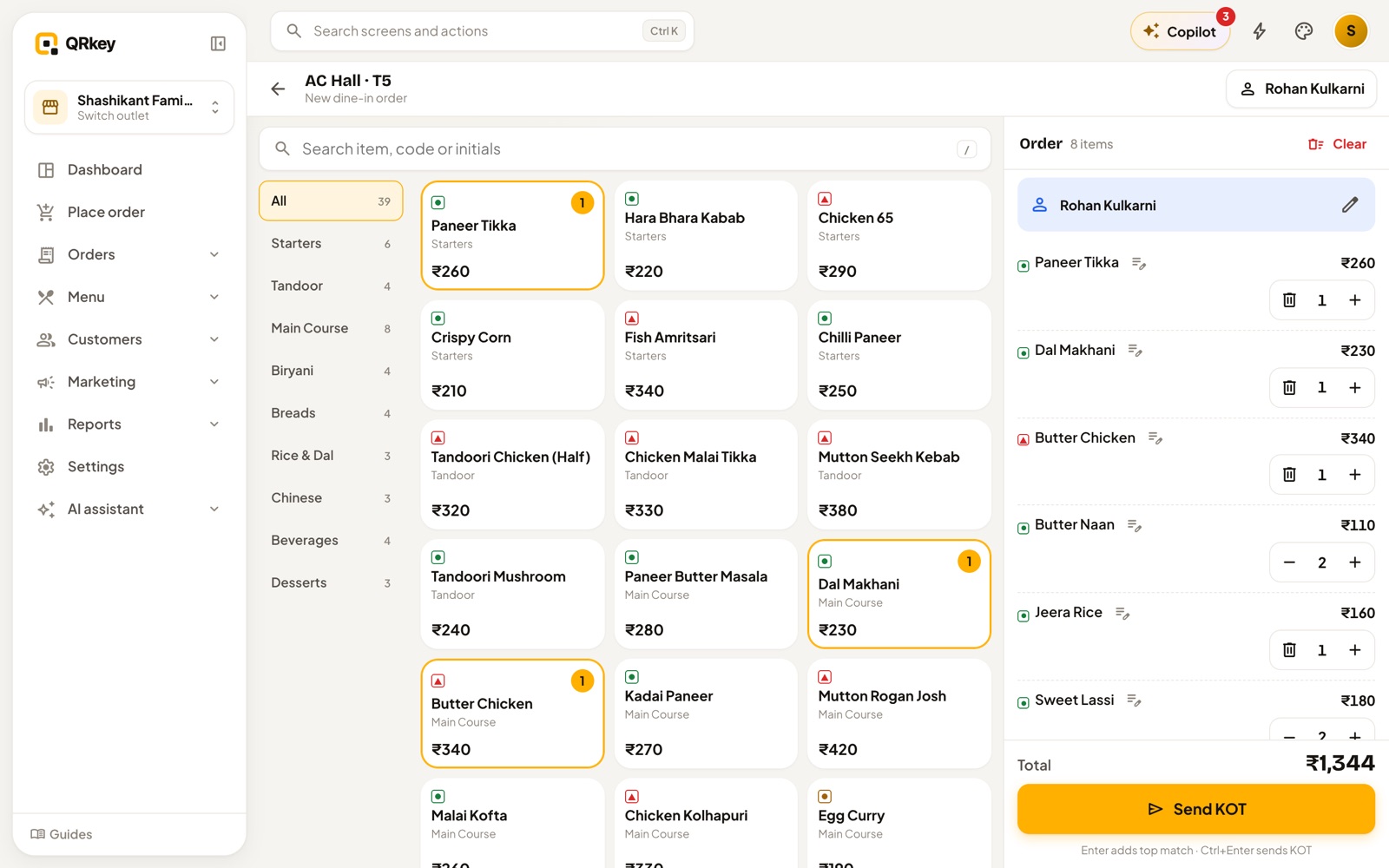
- The sidebar menu holds every screen, grouped by task: orders, menu, customers, marketing, reports, stock and settings.
- Search finds any screen or action by name. On a keyboard press Ctrl K (⌘ K on a Mac).
- Copilot answers questions about your outlet in plain words and can set things up for you. Press Ctrl I (⌘ I on a Mac).
- The outlet name at the top switches between outlets you have access to.
- Your account menu changes the look (dark mode, layout, density), opens Guides and logs you out.
4. Where to run QRkey
QRkey runs in any modern browser at console.qrkey.in. For the billing counter, install the Windows or Mac app so bills and KOTs print silently and new orders ring even when the window is in the background. Captains and owners can use the Android app on a phone or tablet.
5. Learn as you go
Every main screen has a short walkthrough that points at the real buttons. Open your account menu → Guides, or choose Guide for this page on any screen. The welcome tour starts on its own the first time you sign in on a computer.
Prefer a walkthrough? In QRkey, open your account menu → Guides and start “Welcome to QRkey”. It points at each button on the real screen.