
Dashboard, reports and closing the day
Read the dashboard, run and email reports, print the daily report, keep the cash book and close the outlet.
Read your dashboard
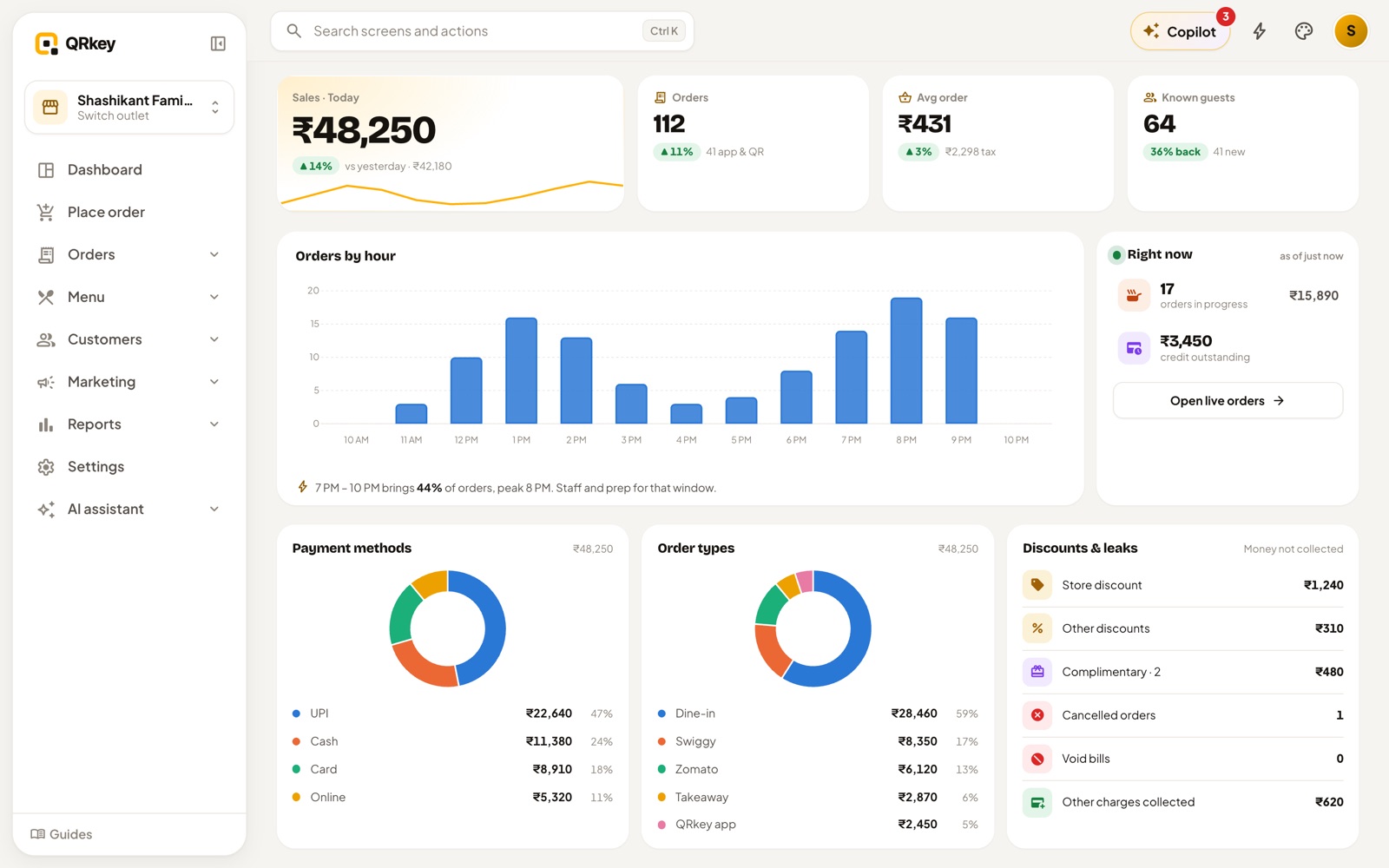
- Pick the period: Today, Last 7 days, This month, or any dates. Everything on the page follows it.
- Headline numbers: sales, orders and average order, with the change against the period before.
- Right now: orders still in progress and credit not yet paid.
- Worth a look: insights about your numbers and requests from your AI helpers, each with a button to act on it.
- Where the money came from: payment methods, order types and Discounts & leaks (discounts, complimentary and cancelled orders, void bills). Glance at the leaks every day.
- What sold: best sellers, top categories and slow movers.
The dashboard keeps its numbers for 15 minutes so it opens fast. Tap refresh for the latest.
Run a report
- Open Reports. Reports are grouped by type, or type a word from a report's name to find it.
- Pick dates with the quick chips (Today, Yesterday, Last 7 days, This month, Last month) and fill in any field it asks for. More options has extra filters and the columns to include.
- View report shows the rows on screen, where you can search, sort and export to Excel or CSV. Download saves the file, and the ⋯ button has Email the report.
Bars and wine shops also get excise and permit reports.
Print the daily report
Daily report sums up one day of sales on a single sheet, section by section. It opens on today; use the arrows or the calendar for another day. Print sends it to your printer and the ⋯ button has Export to Excel.
Keep the cash book
Bookkeeping lists every money movement: order payments, petty cash, float, expenses, shortfalls and excess. Tap Add entry to record money in or out, and turn on Expense for a cost with its category. Fixing an entry asks for the closing password.
Close the day
- Open Closing. It shows today's cash balance across accounts, orders still waiting for settlement and the discounts given.
- Count your cash drawer against Cash position now.
- Check Waiting for settlement: those orders aren't paid yet.
- When everything matches, tap Close outlet and enter the closing password.
Reports that come to you
Turn on the Daily briefing helper for a three-line summary at closing time, or describe a report in your own words ("every day at 11 pm, email me online orders by payment method") and QRkey sends it on that schedule. See The AI assistant.
Prefer a walkthrough? In QRkey, open your account menu → Guides and start “Read your dashboard”. It points at each button on the real screen.