
The AI assistant: helpers and Copilot
Turn on AI helpers, approve their requests, ask Copilot about your numbers, let it set things up after you check every change, and create your own report agents.
Your AI assistant page
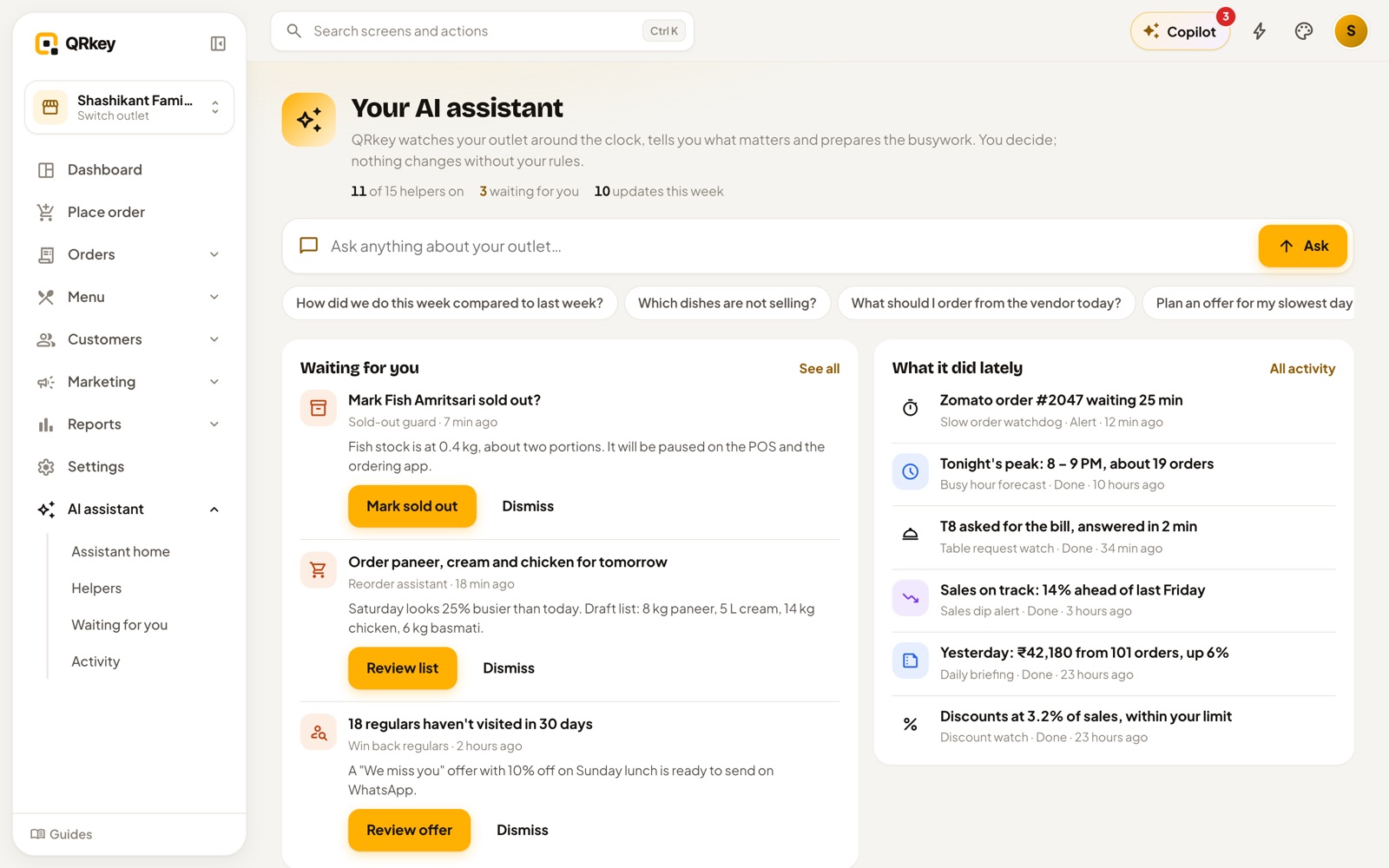
Open AI assistant in the sidebar. It shows how many helpers are on, what's waiting for your decision, and what the helpers did lately. An Ask anything box sends your question to Copilot.
Turn helpers on
Every helper starts switched off. Flip a switch to turn one on with its usual settings, or open Settings on its card to change the schedule and options. Run now tries it straight away.
| Helper | What it does | Can it change things? |
|---|---|---|
| Daily briefing | Three plain lines about the day at closing time. | No, it only tells you |
| Sales check | Warns you in the evening when today is well behind a usual day, with one suggestion. | No, it only suggests |
| Sold-out guard | Hides dishes on the POS and QR menu when stock hits zero, and brings them back after a restock. | Yes: Ask first or Automatic |
| Slow-order watchdog | Alerts staff once per order when an order waits past your time limit. | No, it only tells you |
| Menu tidy-up | Weekly list of dishes nobody orders and dishes without a description. | No, it only suggests |
Helpers that can change something work in Ask first mode by default: the request waits in Approvals until you approve or reject it, and is checked again at that moment. Activity shows everything the helpers saw, suggested and did.
Ask Copilot
Tap Copilot on any screen, or press Ctrl I (⌘ I on a Mac). Ask about sales, live orders, the menu, item sales or stock, for example "How did we do yesterday?" or "Which dishes are slowing down?". It reads only this outlet's data and links to the screen with the detail. In Chrome, Edge and on Android you can tap the mic and speak.
Let Copilot set things up
- Ask for a change, like "Add 5% GST to all food items" or "Add tables T11 to T15 on the rooftop". Copilot can work on your menu, prices, taxes, discounts, customers and tables.
- It replies with a plan. Each line is marked Add, Change or Remove and shows the old value crossed out, an arrow, then the new value.
- Untick anything you don't want. Tap Apply to make the ticked changes, or Cancel to drop the plan. Removing something asks once more.
Each change needs the same permission as doing it on the screen, and every applied change is logged. AI can make mistakes, so look over prices and taxes after a big change. Copilot can't change, void or discount a bill.
Create your own report agent
In Automations, describe a report in your own words, for example "every day at 11 pm, email me online orders grouped by payment method". QRkey turns it into a scheduled report and sends it by email, or by SMS or WhatsApp as a link once those message templates are approved. Reports carry totals, not your guests' names or phone numbers.
AI elsewhere in QRkey
- Dashboard insights: up to four short notes about your numbers in "Worth a look", each with a button to act.
- Menu descriptions: Write with AI on a menu item, or for many ticked items at once. Read them before you save.
- Diet tags: Suggest with AI proposes tags; check every one.
- For guests: if you switch it on, guests can ask your QR menu questions like "what's mild and vegetarian?" and get dishes from your menu, and the ordering app suggests dishes that go well together.
Your data and AI
The AI reads only your outlet's data, and AI use has a daily limit; if it's reached, simple rules take over until the next day. Read what is sent and to whom in our privacy policy.
Prefer a walkthrough? In QRkey, open your account menu → Guides and start “Meet your AI assistant”. It points at each button on the real screen.