
The Windows, Mac and Android apps
Install the desktop and Android apps, keep orders ringing with the screen off, use the order bubble, and check the companion app page.
Why use the apps
QRkey works in a browser, but the apps add what a browser can't do on its own:
- Bills and KOTs print silently and automatically, to network, USB and (on Android) Bluetooth printers.
- New online orders ring and pop up even when QRkey isn't on screen.
- The app reconnects by itself after Wi-Fi drops, and tells you when it's offline.
Download them from the download page.
Windows and Mac
- Download the installer for your computer and run it. On Windows, the installer also removes an old QRkey desktop app if you have one.
- Open QRkey and sign in with your usual account.
- Set up your printers (see Printers).
The Mac app isn't from the App Store yet. If macOS says it can't be opened, open System Settings → Privacy & Security and choose Open Anyway for QRkey. The download page has the details.
Android
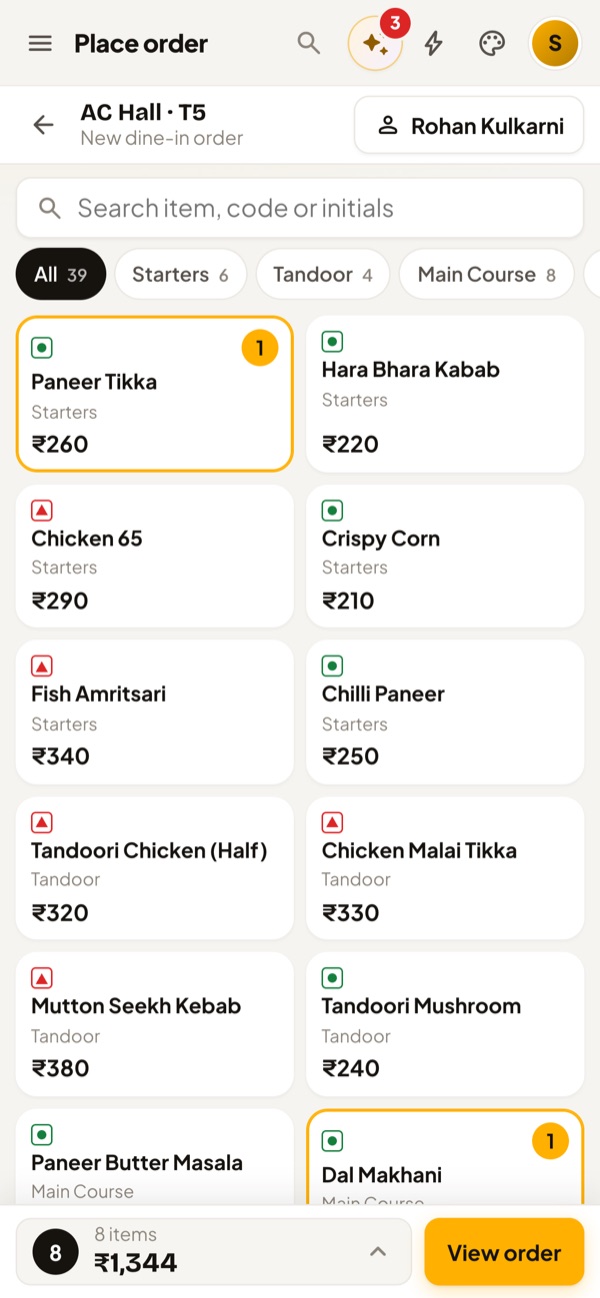
- Download the APK from the download page and allow your browser to install it when Android asks.
- The welcome guide explains how the app works on your phone and asks for each permission, with the reason: notifications, nearby devices (Bluetooth printers), battery "Don't optimise" and, optionally, display over other apps for the order bubble. You can skip any and allow it later.
- Sign in, and set up a printer now or later.
Keep Receiving orders on, so new orders ring even with the screen off.
The order bubble (Android)
With Display over other apps allowed, a round QRkey bubble sits over other apps while the phone receives orders. When a new order arrives, a card pops open over whatever app is in front, showing the source, items, total, customer and address, with Open in POS, Call and Later. Drag the bubble anywhere, or drop it on the × to hide it until the next order.
If Android says the permission is restricted, open App info for QRkey, tap ⋮ and choose Allow restricted settings, then try again.
The companion app page
When QRkey runs inside the desktop or Android app, Companion app appears in the sidebar and in Settings → Staff and apps. It shows the app's connection, today's orders and prints, each printer with its last result, and any feature that still needs switching on, with a button to do it. It also opens the app's own settings, printers and status screens.